
Configuring Infrastructure using Ansible
Recently, I invested a lot of time into writing Terraform code to deploy a fairly complex infrastructure in Azure, which included a Virtual WAN, Firewall, Azure Front Door, and multiple virtual networks in two different regions, along with some VMs. While this was a time-consuming task, once all the Terraform modules were completed and working, I could deploy the entire infrastructure in almost no time and easily undeploy it once I was finished with my testing.
However, I still needed to configure web servers, failover clusters for SQL Always On groups, and other elements. To accomplish this, I decided to explore Ansible. Ansible is an open-source automation tool that allows IT professionals to automate tasks like configuration management, application deployment, and task automation. Ansible uses a simple, human-readable language called YAML to define tasks and configurations, and it can be easily integrated into existing workflows and toolchains.
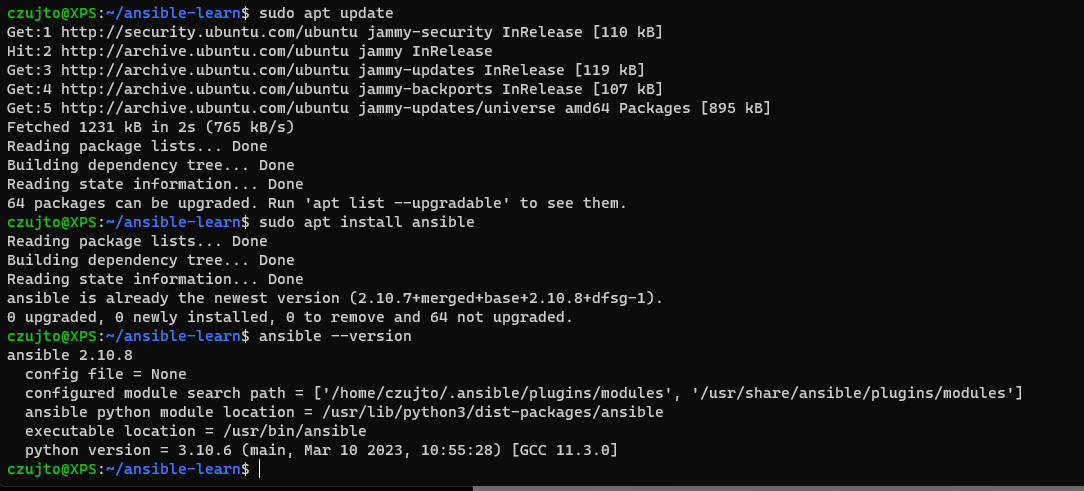
In my current setup, I installed Ansible on my PC using WSL (Windows Subsystem for Linux) and Ubuntu. WSL is a compatibility layer in Windows that enables running Linux binaries natively on Windows. It provides a Linux-compatible kernel interface that allows Linux binaries to run on Windows without the need for a traditional virtual machine. Installing Ansible on WSL and Ubuntu is fairly straightforward.
After installing Ansible, I created a project folder and an inventory.txt file inside the project folder using the command sudo vi inventory.txt In the inventory.txt file, I added the hosts that I wanted to deploy my configuration, one is a VM running on my PC and one is a VM deployed in Azure with my Terraform code. I divided the servers into two groups: [Window] and [azure]. You can add as many servers as you want to each of the groups.
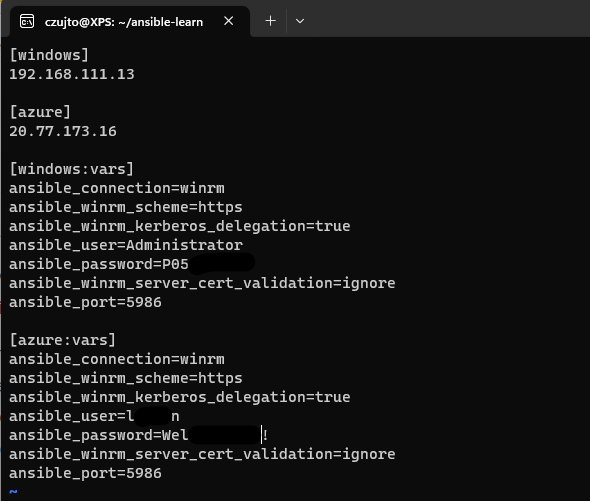
The next step was to configure a variable for each VM to allow communication between Ansible and Windows OS. It’s essential to remember that winrm must be configured on the Windows VM. You can run a PowerShell script to configure listeners and generate a self-signed certificate required for authentication. The PowerShell script can be found here
For Azure VMs, I also had to configure NSGs and a Firewall to allow communication from my home PC on port 5986 used by Ansible.
Now, let’s create a playbook. An Ansible playbook is a collection of tasks that are executed against a set of hosts defined in an inventory file. Playbooks are written in YAML format and define the desired state of the hosts. Playbooks can be used for a wide range of automation tasks, including configuration management, application deployment, and task automation.
A playbook consists of one or more plays, and each play consists of a set of tasks to be executed on the hosts. Tasks are executed in order, and each task defines a module to be run on the host and the parameters for that module.
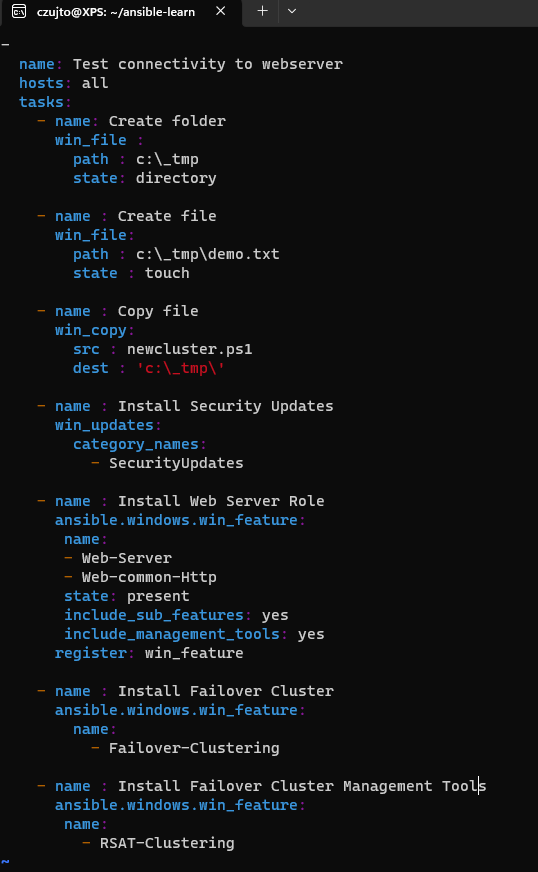
In my playbook, I do a few things:
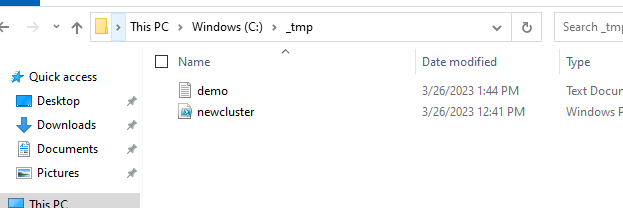
- create a folder _tmp
- create a demo.txt file inside a folder that was created in the previous file
- copy PowerShell script that will create new failover cluster with a single node
- install Windows Security Updates
- install IIS on both VMs
- install Failover Cluster feature
- install Failover Cluster Management Tools
Here is my playbook file pingtest.yaml
Okay, now that we have everything configured, let’s run the playbook and see the end result. To execute a playbook, we run the below command: ansible-playbook pingtest.yaml -i inventory.txt
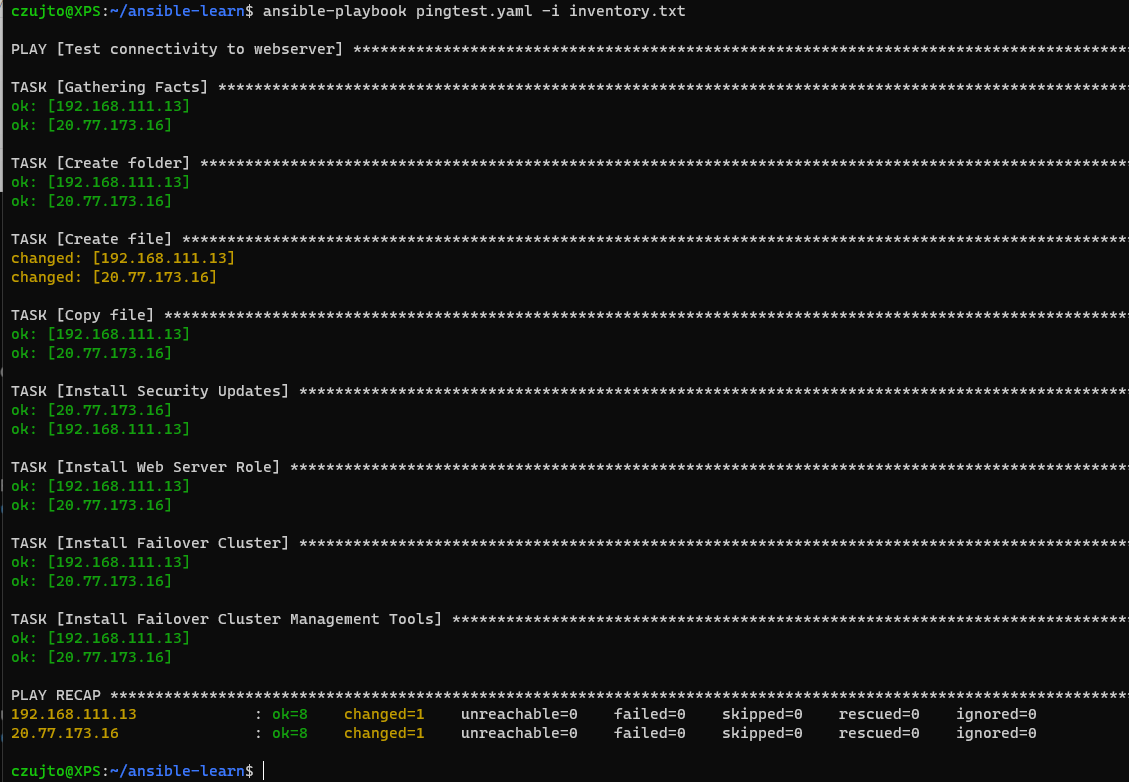
Everything worked as expected (it didn’t straight away and it took me a good few hours to sort everything out 😂).
Next, verify the IIS deployment:
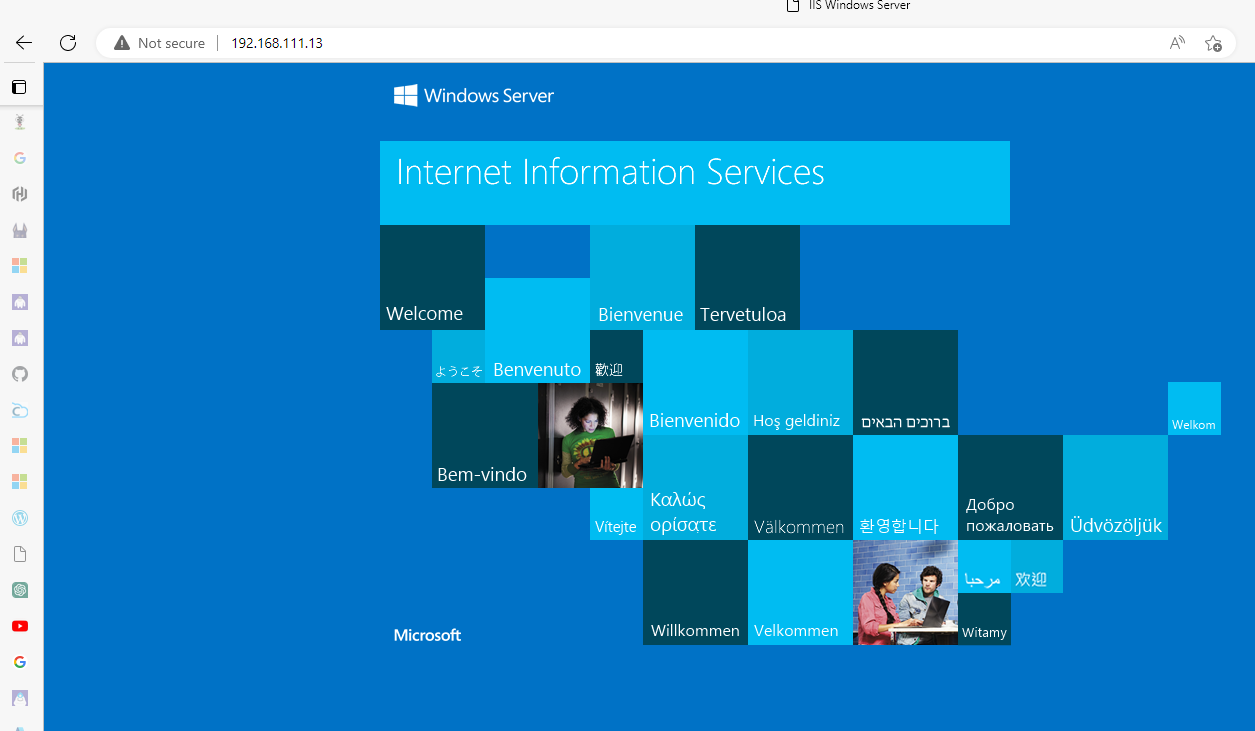
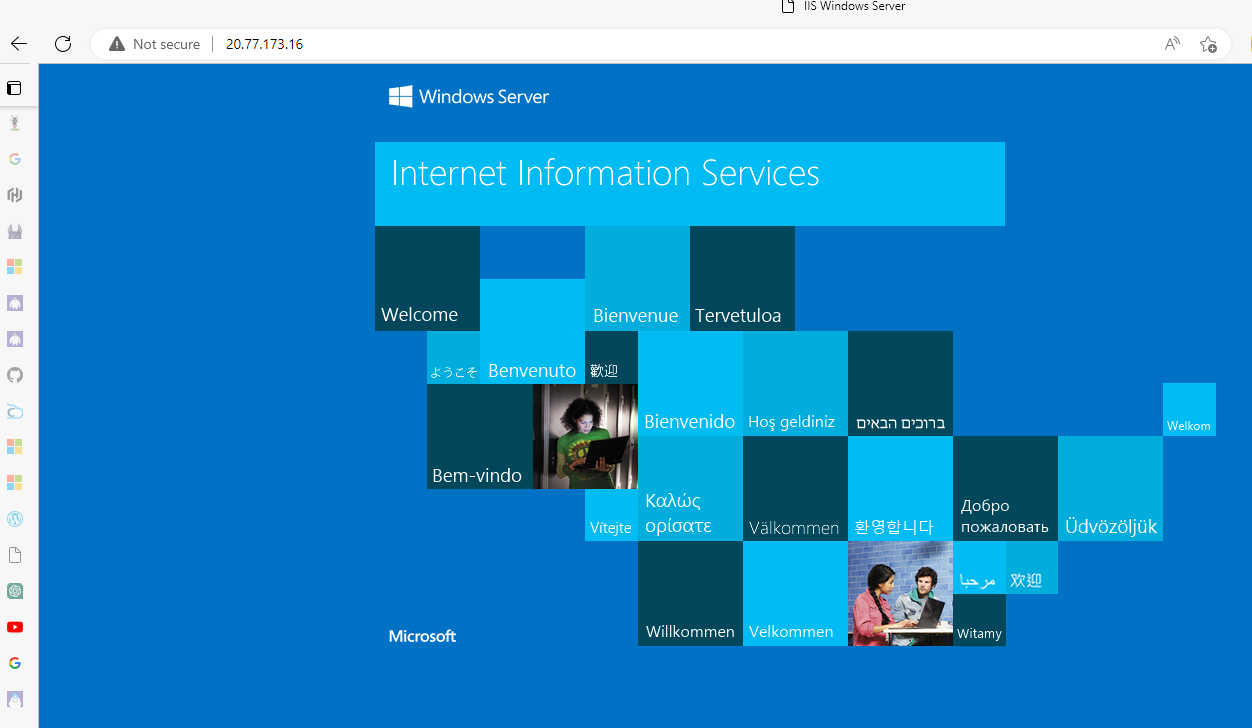
As you can see, IIS has been successfully installed. What about Failover Cluster roles? Here they are too, with files and folders as well :)
Summary
This example used Terraform to provision Azure infrastructure and Ansible to configure Windows server roles after deployment. The combination is useful when responsibilities are clear: Terraform owns cloud resource state, while configuration automation manages operating-system configuration in a controlled, repeatable way.
Before production use, protect inventory secrets, restrict WinRM exposure, use appropriate authentication and certificate practices, test idempotency and include patching and rollback in the operating model. Automation is most valuable when it reduces drift and leaves a reviewable record of platform changes.
Follow Azure architecture notes
Follow new Azure architecture notes via RSS or connect with me on LinkedIn. Public technical work is also available on GitHub. For focused platform feedback, see Azure architecture reviews.