
Azure Files SMB Multichannel: Performance, Requirements and Configuration
Azure Files SMB Multichannel enables supported SMB clients to establish multiple network connections to an Azure file share, improving throughput for demanding file workloads.
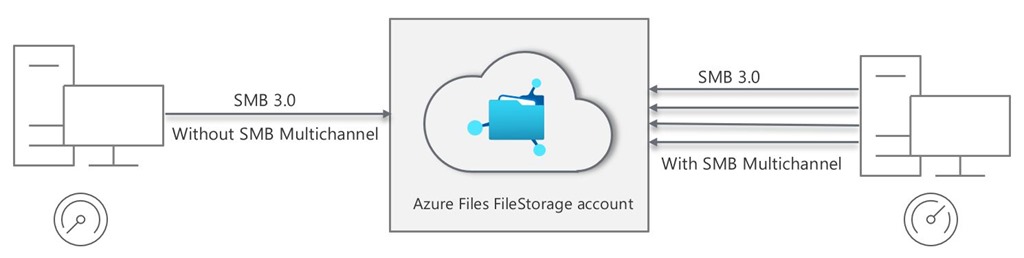
Updated note (2026): SMB Multichannel for Azure Files is no longer a preview enrollment workflow. Current Microsoft documentation states that Azure Files supports SMB Multichannel on SSD file shares and that it is enabled by default for Windows clients in all Azure regions. Validate current constraints in Microsoft Learn before production deployment.
What SMB Multichannel Does
SMB Multichannel is part of the SMB 3.x protocol family. Instead of establishing a single client-to-file-share connection, a compatible client can open multiple network connections for the same SMB session. The client can use available network interfaces and Receive Side Scaling (RSS) capabilities to distribute I/O across processors and paths.
For Azure Files, the practical outcome is improved throughput for workloads that need to move large amounts of data between a supported Windows client and an SSD file share. It is not an automatic answer to every performance issue. Latency, storage tier, file size, I/O pattern, VM sizing, network path and application behavior still matter.
Why It Matters for Azure Files
Azure Files provides managed SMB shares without requiring an organization to operate file server virtual machines. For workloads that already use Azure Files and need greater throughput from a client or a small set of clients, SMB Multichannel can make better use of the available network and storage capability.
This is most useful when a performance assessment shows that the workload is constrained by a single SMB connection or client-side network processing, rather than by storage limits or application design. Architecture work should begin with workload measurements and expected service limits, not with enabling features in isolation.
Where It Helps
Potential scenarios include:
- Large file transfer and content-processing workloads where clients perform sustained reads or writes.
- Media, engineering or analytical processing in which a small number of machines access large datasets.
- High-throughput application shares that are already suitable for managed SMB storage.
- Some Azure Virtual Desktop (AVD) profile or container scenarios, where relevant and validated by performance testing.
Small files, metadata-heavy operations or applications dominated by latency may see limited benefit. Profile storage for AVD also requires particular care because user experience depends on resilience and supportability as well as throughput.
Requirements and Constraints
Microsoft documentation currently identifies the following important requirements:
- Azure Files SMB Multichannel is supported on SSD file shares.
- Clients must use a supported SMB 3.x configuration and should be kept current with recommended operating system updates.
- Windows clients support SMB Multichannel, which is enabled by default in normal current configurations.
- A maximum of four channels applies to Azure Files SMB Multichannel.
Consult current Azure Files scalability and SMB documentation when selecting storage tier, redundancy and client sizing. A design based on an old preview limit or a laboratory workload can produce disappointing results in production.
SSD File Shares and Storage Accounts
The original version of this article described premium file shares in FileStorage accounts during preview. In current design discussions, it is clearer to refer to SSD file shares and validate the precise Azure Files account and tier configuration against Microsoft’s current service documentation.
Use an SSD file share where the workload requires predictable high performance and the cost model is justified by measured requirements. Record the target workload profile, expected throughput, IOPS, capacity, resilience and backup needs as part of the platform decision.
Network Considerations
SMB 3.x and TCP 445
SMB traffic to Azure Files uses TCP 445. Clients must be able to reach the intended file share over an approved network route. For Azure-hosted workloads this may be straightforward; for on-premises or remote clients, network policies and service-provider restrictions require explicit validation.
Private Endpoints and DNS Resolution
Enterprise platforms commonly use private endpoints for storage access. In that architecture, correct private DNS resolution is essential: the storage account name must resolve to the approved private endpoint address from each connected network that uses the share. A throughput feature cannot correct DNS misrouting or an unintended public access path.
Private endpoint design should therefore align with landing-zone DNS patterns, hub-and-spoke connectivity, conditional forwarding from on-premises networks and ownership of private DNS zone links. Test name resolution and the connection path before measuring performance.
Client OS and RSS-Capable Interfaces
Client operating systems need supported SMB behavior and current patches. RSS-capable network interfaces allow processing to scale across CPUs, which is one of the ways SMB Multichannel can increase throughput. The client VM size and NIC capabilities should be appropriate for the throughput target; an undersized client remains a bottleneck.
Check the Current Configuration
Use Azure CLI to inspect the SMB Multichannel setting on an Azure storage account:
az storage account file-service-properties show \
  --resource-group <resource-group> \
  --account-name <storage-account> \
  --query "protocolSettings.smb.multichannel.enabled"
Depending on when an account was created and whether the property was explicitly set, documentation may describe a null value as meaning that default service settings apply. Confirm the behavior for your account rather than treating a missing value as a failure.
Enable SMB Multichannel Using Azure CLI
If the service-side property needs to be explicitly enabled for the selected account, use:
az storage account file-service-properties update \
  --resource-group <resource-group> \
  --account-name <storage-account> \
  --enable-smb-multichannel true
Apply changes first in a non-production environment or a controlled change window. Record the before-and-after setting and measured workload behavior.
Enable SMB Multichannel Using PowerShell
The following Azure PowerShell example retrieves the storage account and inspects its file service property:
$storageAccount = Get-AzStorageAccount `
  -ResourceGroupName "<resource-group>" `
  -Name "<storage-account>"

Get-AzStorageFileServiceProperty -StorageAccount $storageAccount
Enable SMB Multichannel explicitly where required:
Update-AzStorageFileServiceProperty `
  -StorageAccount $storageAccount `
  -EnableSmbMultichannel $true
Use placeholders deliberately and replace them with values from the intended subscription and resource group only after change review. Always verify the selected Azure context before changing a production storage account.
Verify from a Windows Client
First confirm whether the Windows SMB client has Multichannel enabled:
Get-SmbClientConfiguration | Select-Object EnableMultichannel
Inspect interfaces visible to SMB:
Get-SmbClientNetworkInterface
After connecting to the Azure file share and generating suitable I/O, inspect active multichannel connections:
Get-SmbMultichannelConnection
Verification requires an active workload. If no meaningful file I/O is taking place, the result may not demonstrate the performance behavior being assessed.
Troubleshooting
If expected channels or throughput do not appear, investigate the problem in layers:
- Confirm that the file share is in a supported SSD configuration and that service-side SMB Multichannel is enabled or using the expected default.
- Confirm that the client uses a supported, patched Windows configuration and that
EnableMultichannelis true. - Validate DNS resolution and the actual network path, especially when private endpoints are used.
- Check TCP 445 reachability and any firewall, network security group or forced-routing behavior.
- Inspect client VM and network interface capability, including RSS visibility and available CPU/network performance.
- Measure using representative file sizes and concurrency rather than a single small copy operation.
- Compare observed performance with documented Azure Files limits and the storage account design.
Performance troubleshooting should collect evidence: share configuration, network path, client specifications, test method, throughput and relevant diagnostics. Without that evidence it is easy to attribute a bottleneck to the wrong platform layer.
Enterprise Architecture Considerations
In a governed Azure platform, file services should fit established patterns for identity, networking, private DNS, monitoring, backup and cost ownership. If Azure Files is offered as a reusable capability for product teams, the platform contract should state which tiers are supported, how private endpoints and DNS are created, how identity-based access is configured and how high-performance requirements are assessed.
For AVD or another shared platform, avoid assuming that one tuning setting solves all user-experience questions. Profile storage design, availability, authentication, backup, image operations and user concurrency all contribute to outcomes.
Treat SMB Multichannel as an optimization that can be enabled and validated within a well-designed file-service pattern. It is most credible when the decision is driven by measured workload need and verified after deployment.
Summary
Azure Files SMB Multichannel can improve throughput for supported Windows clients accessing SSD file shares by using multiple SMB connections. A sound implementation validates storage tier, client support, network and private DNS design, explicit configuration and observed performance. The former preview registration workflow is no longer the appropriate setup path.
Further Reading
Follow Azure architecture notes
Follow new Azure architecture notes via RSS or connect with me on LinkedIn. Public technical work is also available on GitHub. For focused platform feedback, see Azure architecture reviews.